I Built My Own Private Cloud With a Raspberry Pi (And Ditched Subscriptions)
I Built My Own Private Cloud With a Raspberry Pi (And Ditched Subscriptions)
Are you tired of running out of storage in the cloud and then having to pay a monthly fee just to keep accessing your own files?
Honestly, something just doesn’t feel right about dumping all that data into the hands of big companies and then pretty much paying rent for storage you don’t actually own.
So I decided to stop paying and put the data back in my own hands. I set up a Pi 5 with NextCloud and Tailscale, turning it into my own private cloud storage that syncs data across all my devices. Just like OneDrive or iCloud Drive - it integrates directly into the file system of any device. And if you prefer using your browser instead? It’s got a nice dashboard for that too.
The best part? With this setup, you can access your files anywhere you go with zero subscriptions.
Let’s get right into it.
What You’ll Need
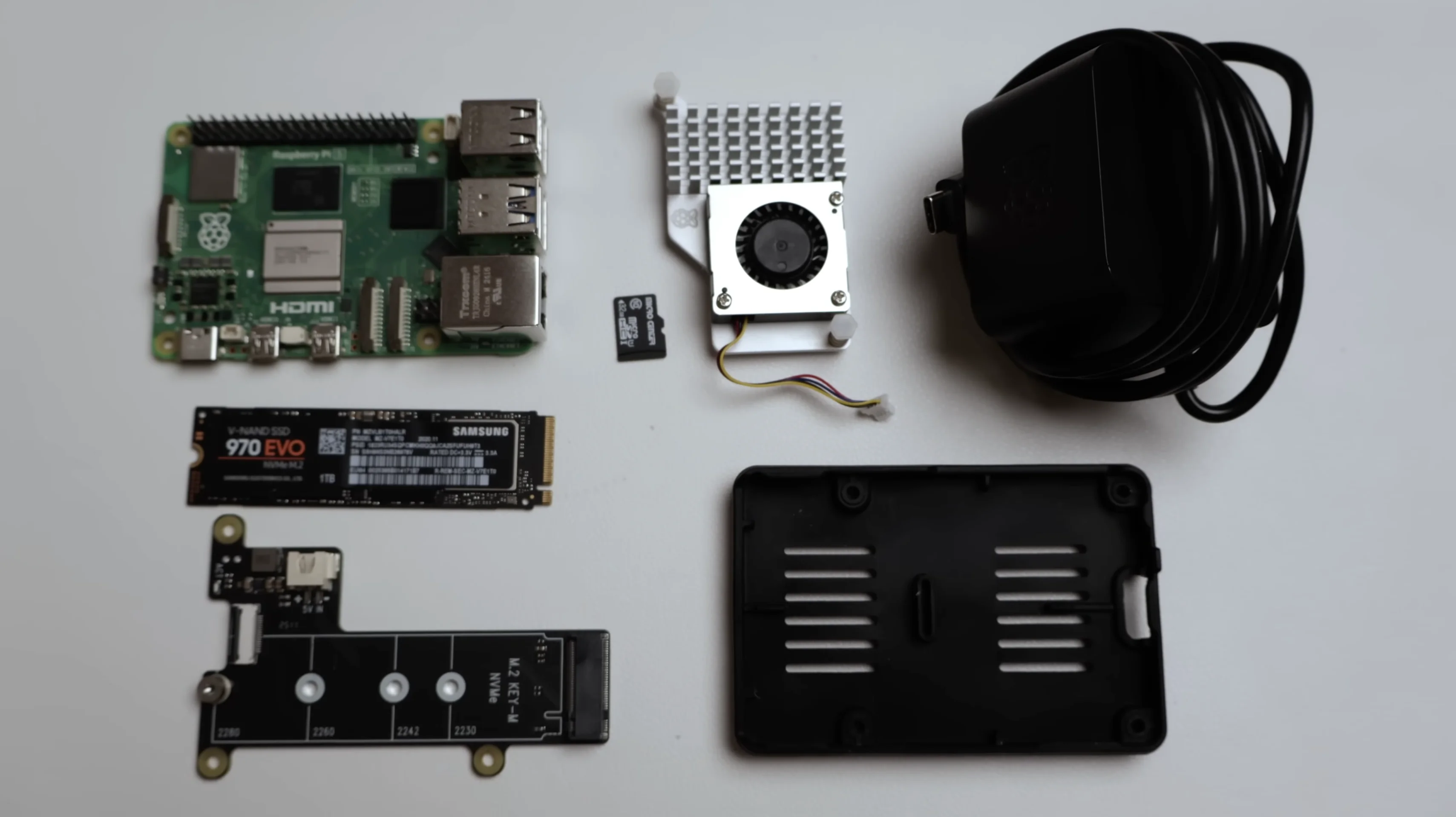
First up, here’s everything you’re going to need for the setup:
- Raspberry Pi 5 - I recommend at least the 4GB model
- Active cooling fan - for ideal performance
- Micro SD card - for the initial setup
- M.2 NVMe SSD - this will be our real storage. I used one I had lying around, but any compatible one will work
- Pi 5 NVMe HAT - lets you connect the NVMe to the Pi
- Basic bumper case - for extra protection
- 27W USB-C power supply
Links to everything will be in the description below if you’re following along with a video. But honestly, most of this stuff is easy to find online.
Putting It All Together
The assembly is super straightforward.
First, align and attach the cooling fan by pushing the plastic pins through the mounting points. Then put the bumper case on if you have one. Use the provided standoffs and screws to mount the NVMe HAT, then connect the ribbon cable.
Finally, slide the NVMe into place and secure it with the screw at the very end.
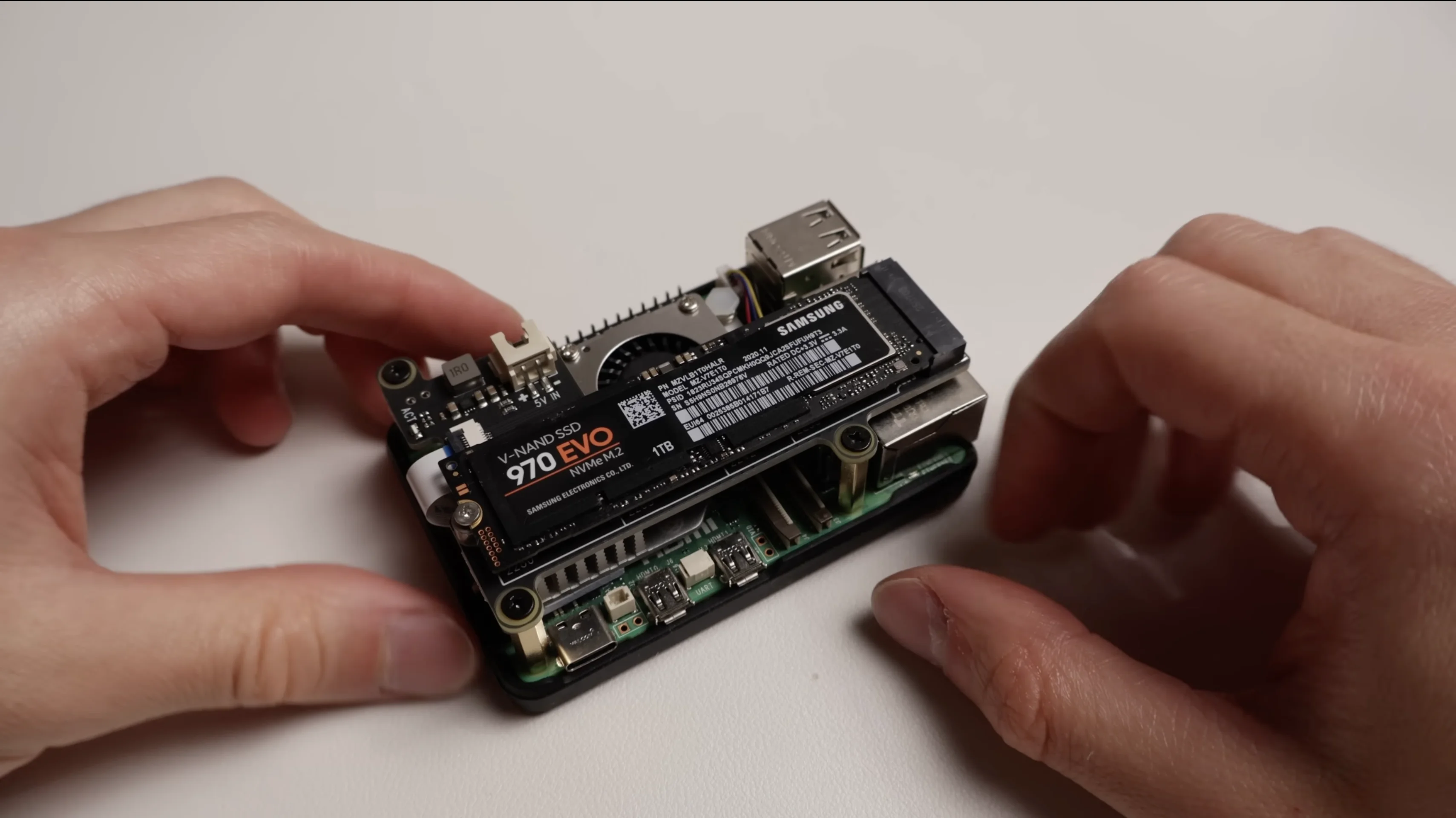
This hardware setup is perfectly functional. But if you want a cleaner all-in-one solution, I’d recommend something like the Argon Neo5 case which has the fan and NVMe slot built in. Less mess, cleaner look.
Flashing the OS
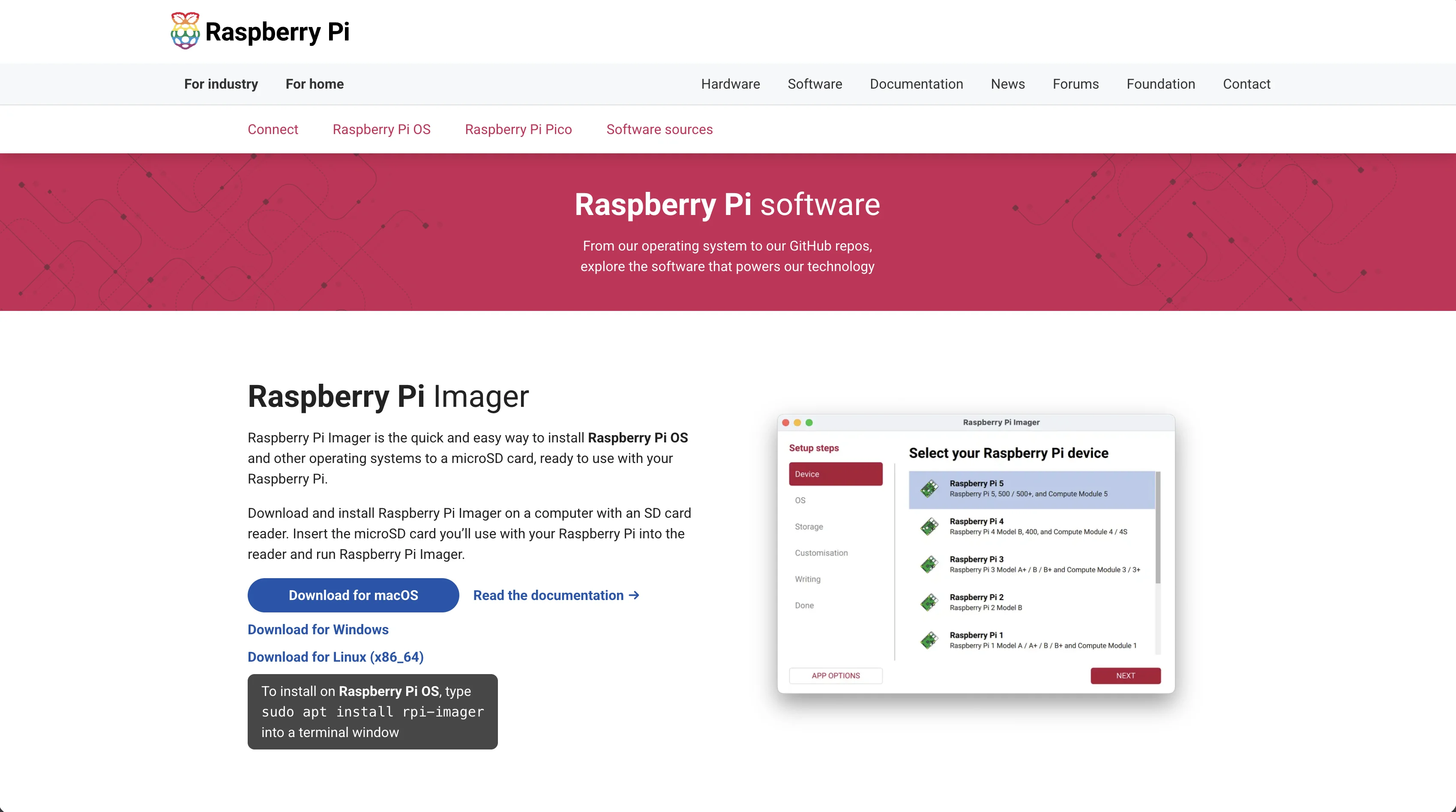
Once you’ve got everything assembled, put the Pi aside for now and grab your micro SD card. Plug it into your computer and head over to the official Raspberry Pi website to download their imager software.
Download it, install it, and open it up.
Here’s what you need to configure:
- Select Raspberry Pi 5 as your model
- For OS, go with the latest 64-bit version at the top
- Select your micro SD card
- Set a hostname - I used “pcloud”. Pick something easy to remember
- Set your location - city and timezone
- Set a username and password - username doesn’t matter much, just note it down. Password? Make it secure.
- Set up Wi-Fi - enter your network password
- Enable SSH - this is how we’ll connect to the Pi later
- Leave Raspberry Pi Connect off
Click Write, confirm, enter your computer password if it asks, and wait for it to finish writing the image to the SD card.
Once it’s done, safely remove the micro SD card, plug it into the Pi, connect the USB-C power cable, and give it a couple minutes to boot up.
First Boot & SSH
After a couple of minutes, open up a terminal and SSH into your Pi:
ssh username@hostname.localFor me, it’s:
ssh pi@pcloud.localType yes, enter your password, and you should be connected.
Cloning to NVMe
Right now, the Pi is running off the micro SD card. But we want to run off the NVMe. So first goal: clone the entire system from the SD card onto the NVMe. It’s way simpler than it sounds.
First, run this quick command to prep the system:
sudo raspi-config nonint do_memory_split 256This changes a memory setting that’ll give us full compatibility with NextCloud.
Now for the cloning. We’re going to use a tool called rpi-clone - specifically a version published by Jeff Geerling.
sudo apt install git
git clone https://github.com/geerlingguy/rpi-clone.git
cd rpi-clone
sudo cp rpi-clone /usr/local/sbin/
Then run the clone:
sudo rpi-clone nvme0n1It’ll go through the cloning process - takes a minute or two. When you see the prompt, hit enter.
Now everything from the micro SD card should be copied onto the NVMe. But before we reboot, we’re going to change the boot order to make sure the Pi boots from the NVMe first.
sudo raspi-configGo to:
- 6 Advanced Options
- A4 Boot Order
- B2 - NVMe boot
Click OK, Finish. Say no to rebooting. Instead, manually unplug the Pi, take out the micro SD card (we don’t need it anymore), and plug the power back in.
Give it a minute to boot up.
Connect back with the same SSH command. If you can SSH in, it means it’s running off the NVMe now.
Installing NextCloud
Now we can move on to the two services powering this setup: NextCloud and Tailscale.
NextCloud is what manages the file system on the Pi - making sure files are accessible and sync across all your devices.
We’re installing it with Snap, which is the most straightforward way to get NextCloud running on a Pi.
sudo apt install snapd -y
sudo snap install nextcloud
The second command might take a while. Once it’s done, confirm everything’s running:
sudo snap servicesIf everything shows as running, we’re good to go.
Accessing the Dashboard
Now that NextCloud is running, we can access the web dashboard. First, find your Pi’s IP address:
ifconfigLook for the wlan0 section and copy the IP address. Paste it into your browser.
It’ll ask you to set up an administrator account. Make sure to set a secure password - all your data will live in this account.
Wait for it to install and initialize. It might look frozen, but give it a minute.
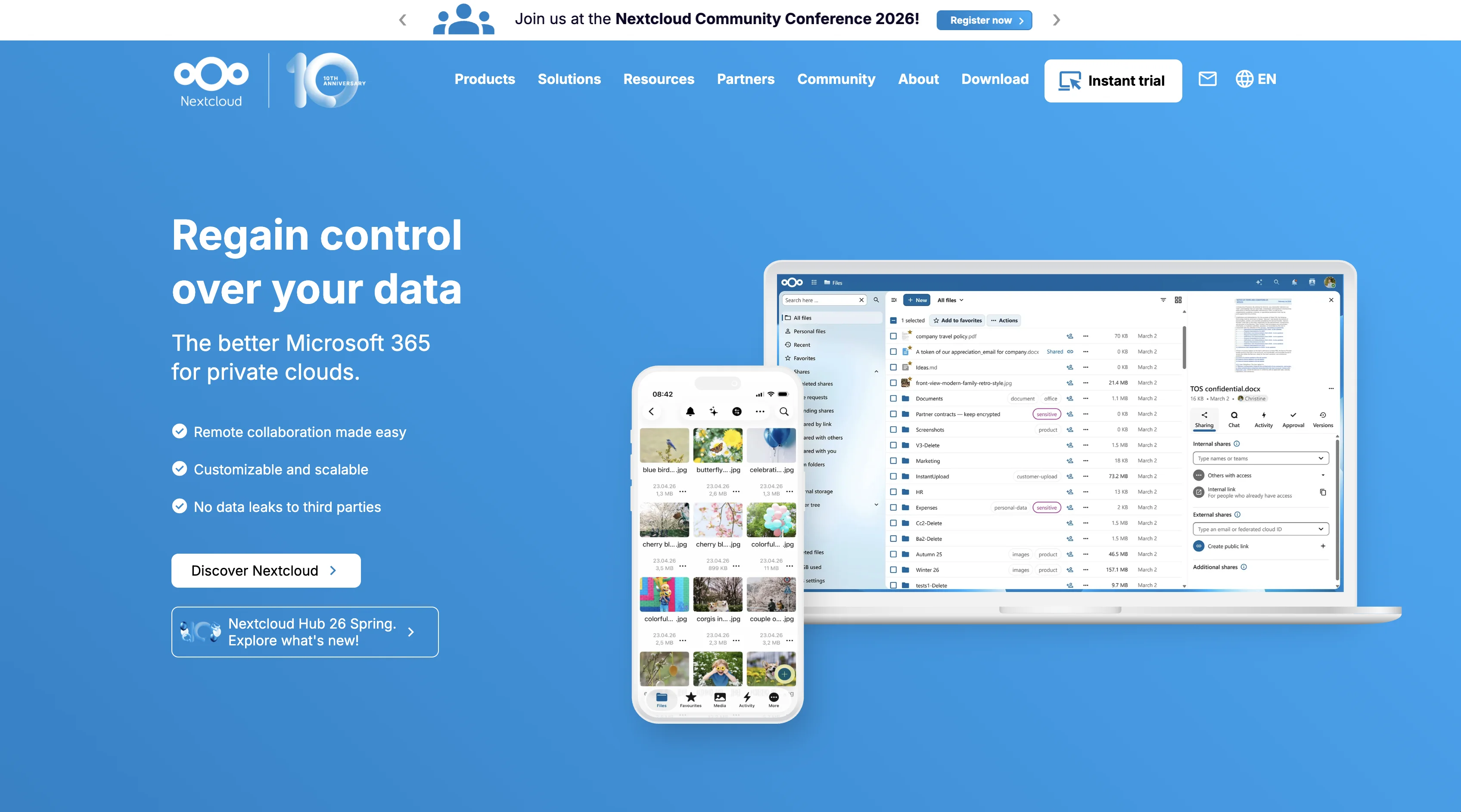
This is the web dashboard I was talking about - it lets you manage your files through the browser.
Setting Up Tailscale
Tailscale is basically a VPN that gives you access to the Pi from anywhere in the world.
Head to the Tailscale website, go to the Linux download section, and copy the install command:
curl -fsSL https://tailscale.com/install.sh | shThen run:
sudo tailscale upIt’ll ask you to authenticate. Copy the link, open it in your browser, sign in (I used GitHub), and connect.
Now if you visit the Tailscale admin console, you’ll see your Pi show up on your account.
Bridging NextCloud and Tailscale
We’re close now. Just a final set of commands to make NextCloud and Tailscale work together seamlessly.
Run these:
sudo nextcloud.occ config:system:set trusted_domains 1 --value=$(tailscale ip -4)
sudo nextcloud.occ config:system:set overwrite.cli.url --value=http://$(tailscale ip -4)
Then get your Tailscale DNS name. In the Tailscale admin console, click the arrow next to your Pi and copy the ts.net address.
sudo nextcloud.occ config:system:set overwrite.cli.url --value=https://YOUR-DNS-NAME.ts.net
sudo nextcloud.occ config:system:set trusted_domains 2 --value=YOUR-DNS-NAME.ts.net
Replace YOUR-DNS-NAME.ts.net with your actual address.
Finally:
sudo nextcloud.occ config:system:set overwriteprotocol --value=httpsAnd with that, the Pi is fully set up.
Connecting Your Devices
Now the fun part. Grab any device you want to access the Pi storage from. You’ll need to install Tailscale and NextCloud on each device.
On Mac/Windows
- Go to the Tailscale downloads page and install the app for your platform
- Sign in with the same account you used on the Pi
- Toggle it on to connect
With just Tailscale installed, you can access the NextCloud dashboard by pasting the ts.net address into a browser.
But if you want full integration with your device’s file system - like how OneDrive or iCloud works - install the NextCloud desktop app.
Make sure to download the virtual files version on Mac for full functionality.
Open it up, paste your Tailscale ts.net address, and authenticate.
File System Integration
Once logged in, open Finder (or File Explorer on Windows). You’ll see a NextCloud location.
This is all the files on your Pi. You can download, upload, delete - whatever you want. It works just like any other cloud storage, except it’s yours.
On Your Phone
Same process. Install Tailscale, connect. Install the NextCloud app, log in with the ts.net address.
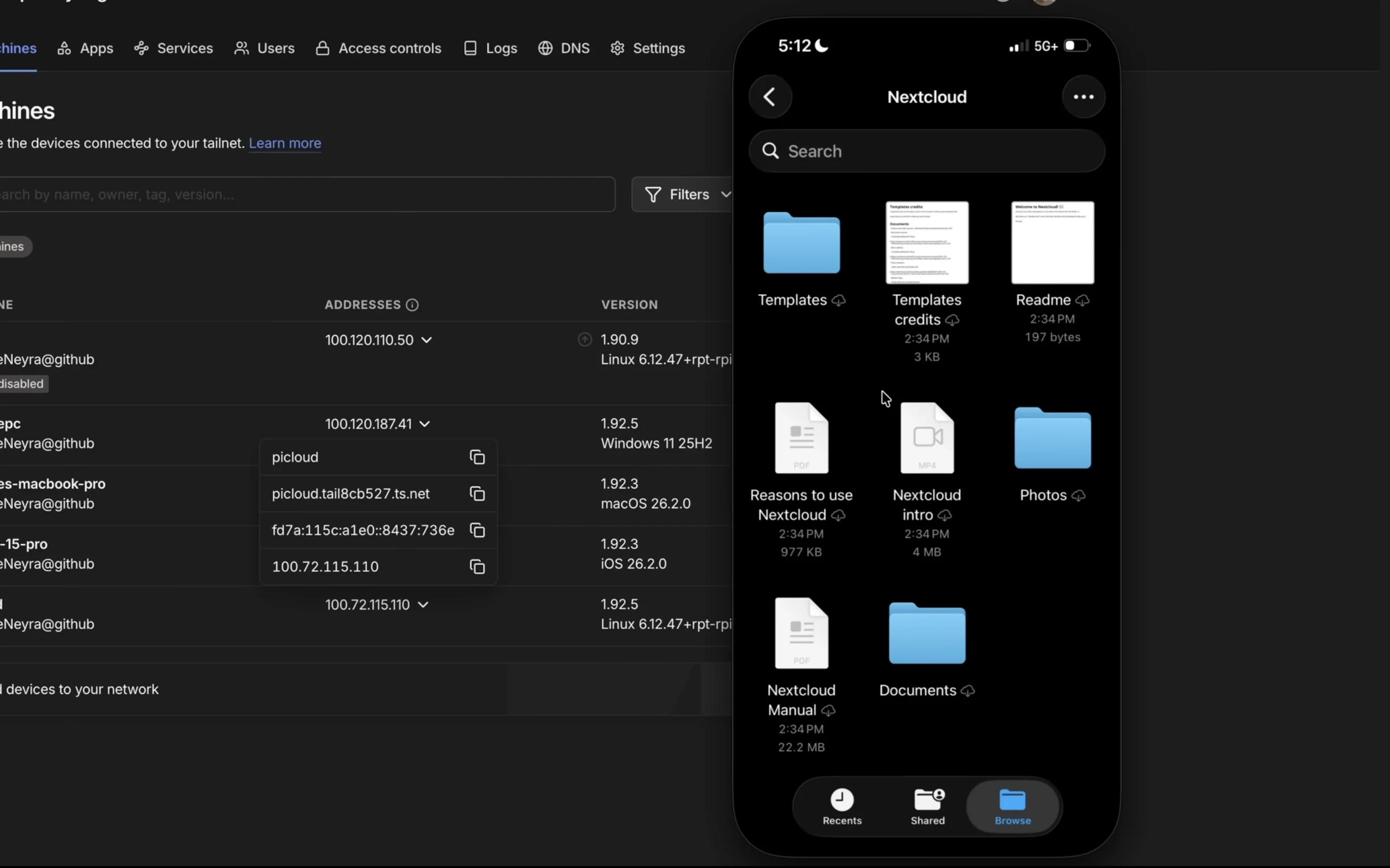
You can access your files through the app, and just like on desktop, there’s a NextCloud location in the file system.
Upload a file from your phone, and it’ll show up on your computer. Sync works both ways.
The Wrap Up
Everything’s working. Files are syncing across devices, whether I’m on my home network or not.
It feels good to actually own my data with no subscriptions and still have all the cloud storage functionality.
If you’re tired of paying monthly fees for storage you don’t really own, this is a solid weekend project. The hardware costs a bit upfront, but it pays for itself in a few months compared to those subscription plans.
No subscriptions. Full control. Your data, your rules.
Got questions? Hit me up. And if you build your own, let me know how it goes.